A tour of the editor
The deal editor walks you through five steps, with a live preview of your real product beside you the whole time.
Every deal is set up in the same editor. Open it by creating a deal, or by clicking a deal's name on the Deals page.
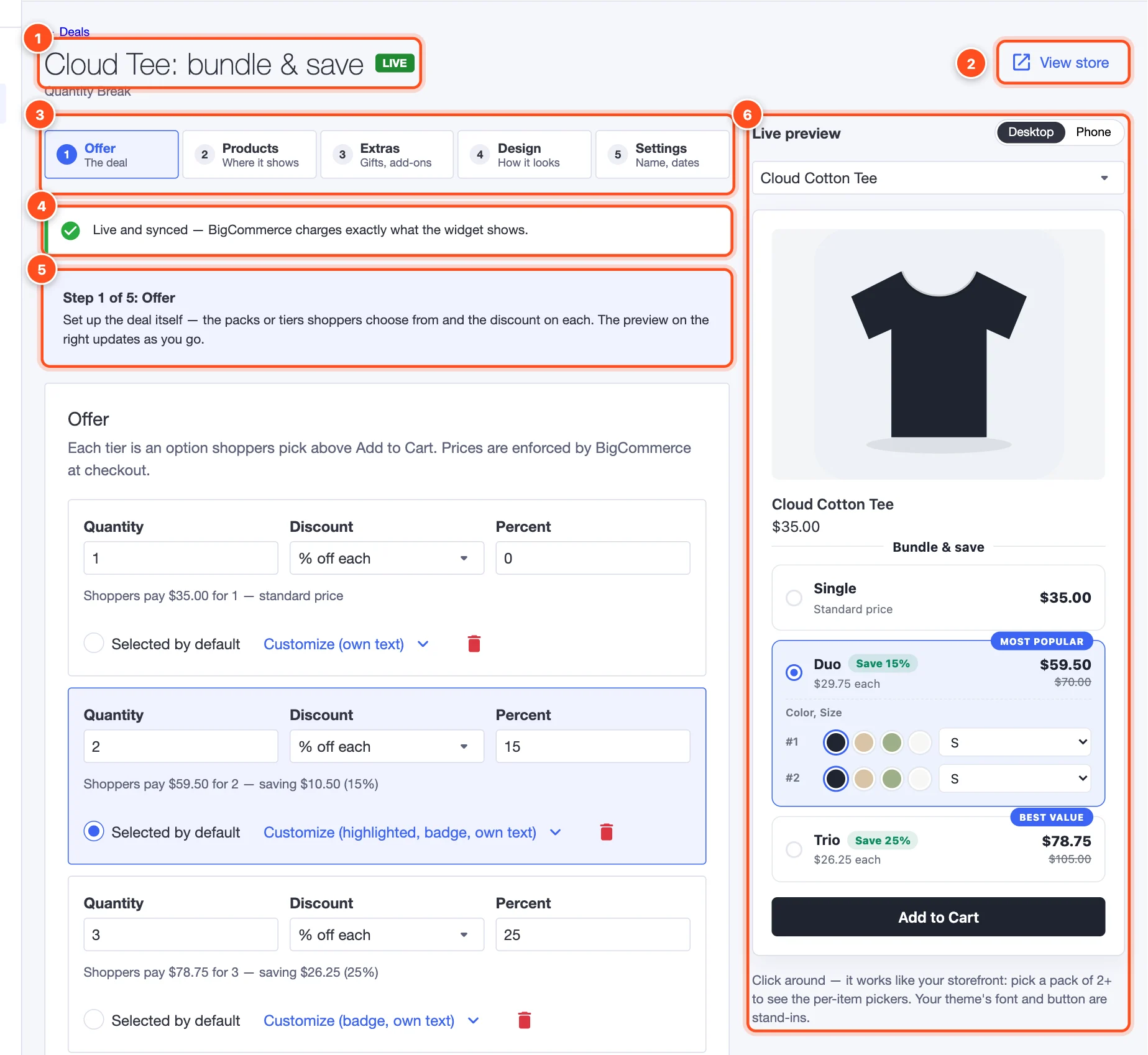
- Deal name and status. The name is only for you. The badge shows where the deal stands: Draft, Live, Scheduled, Paused, Ended, or Needs attention.
- View store opens your storefront in a new tab, so you can check the deal on a real product page.
- The five steps. Work through them in order, or jump to any step:
- Sync status — whether BigCommerce is charging the deal's prices. Green Live and synced means everything's in place. See How discounts reach checkout.
- Step introduction — a one-line reminder of what the current step is for.
- Live preview — the widget as shoppers will see it, drawn by the same code as your storefront. It updates as you type.
The live preview
The preview uses one of the products your deal covers, with its real photo, price and options. Click around — it behaves like your storefront:
- Pick a bigger pack to see the per-item size and color pickers.
- Use the product menu above the preview to switch between the products your deal covers.
- Switch between Desktop and Phone to check both:
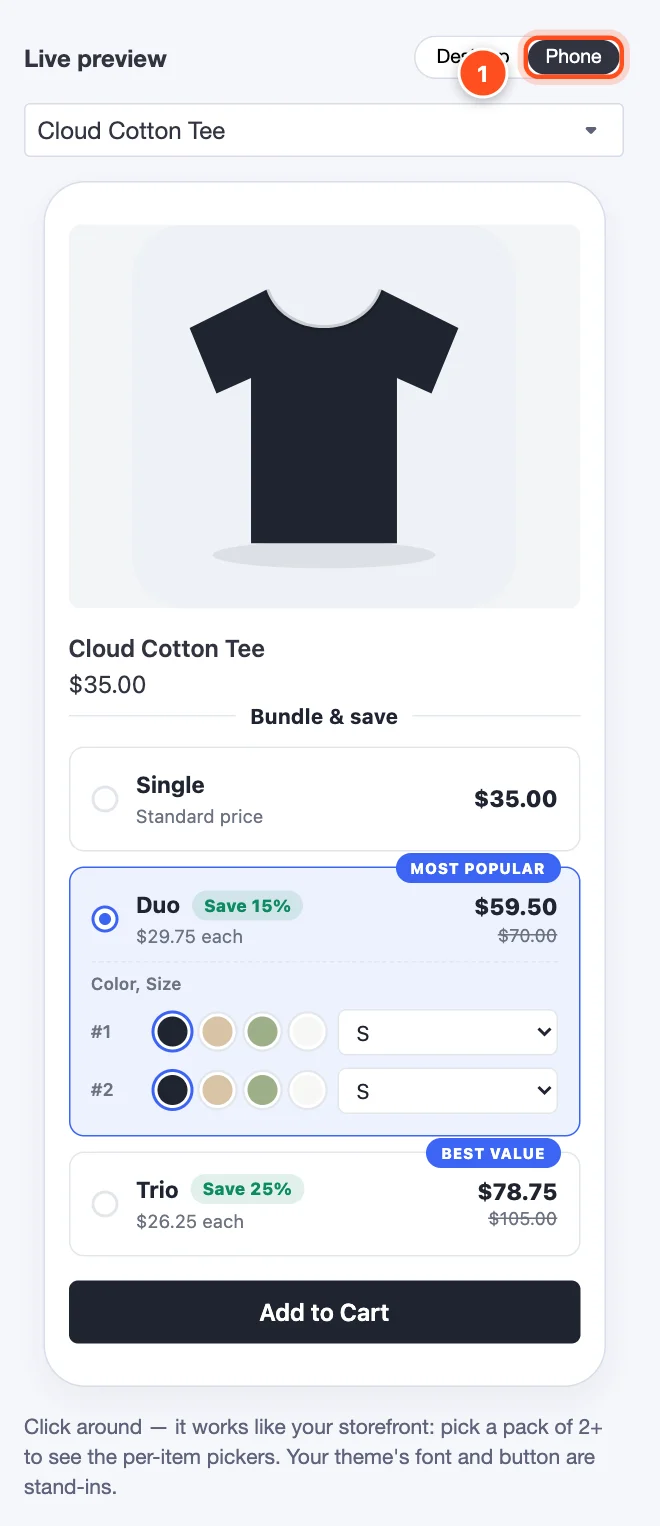
- Phone shows the widget at phone width.
Note: The preview uses a neutral font and a dark stand-in button. On your store, the widget picks up your theme's font (unless you choose one in Design) and shoppers use your theme's real Add to Cart button.
Saving and publishing
The bar at the bottom of the editor is always visible:

- Save status — "All changes saved" or "Unsaved changes".
- Pause (on a live deal) takes it off your storefront and removes its prices. On a draft or paused deal this button is Save draft.
- Save changes (on a live deal) or Publish / Resume (on a draft or paused deal).
Changes to a live deal go to your storefront when you click Save changes — shoppers never see half-finished edits. If you try to leave with unsaved changes, the app asks first.
When something needs fixing
If you save or publish and something is missing or invalid, the editor jumps to the step with the problem, marks that step in red, and outlines the field:
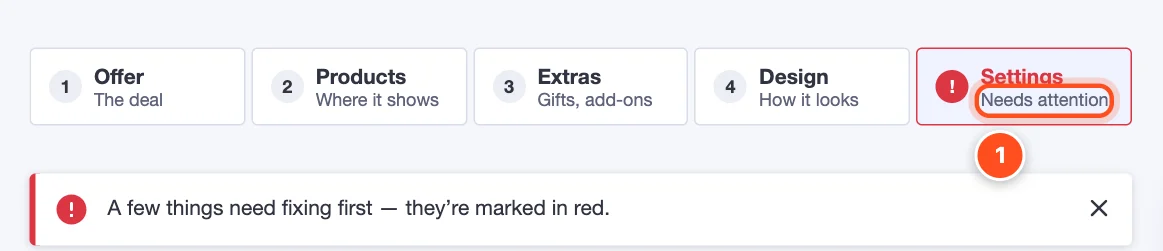
- The step with the problem says Needs attention. Open it and look for the field outlined in red.
The editor checks exactly what BigCommerce will accept, so if it saves without errors, it will publish.