Store settings
Settings that apply to every deal — the default design, how the widget behaves on your theme, and the storefront script.
Open Settings in the app's left menu. It has three tabs: Widget, Script and Billing (billing has its own guide).
Default design
At the top of Settings → Widget is your store's default design.
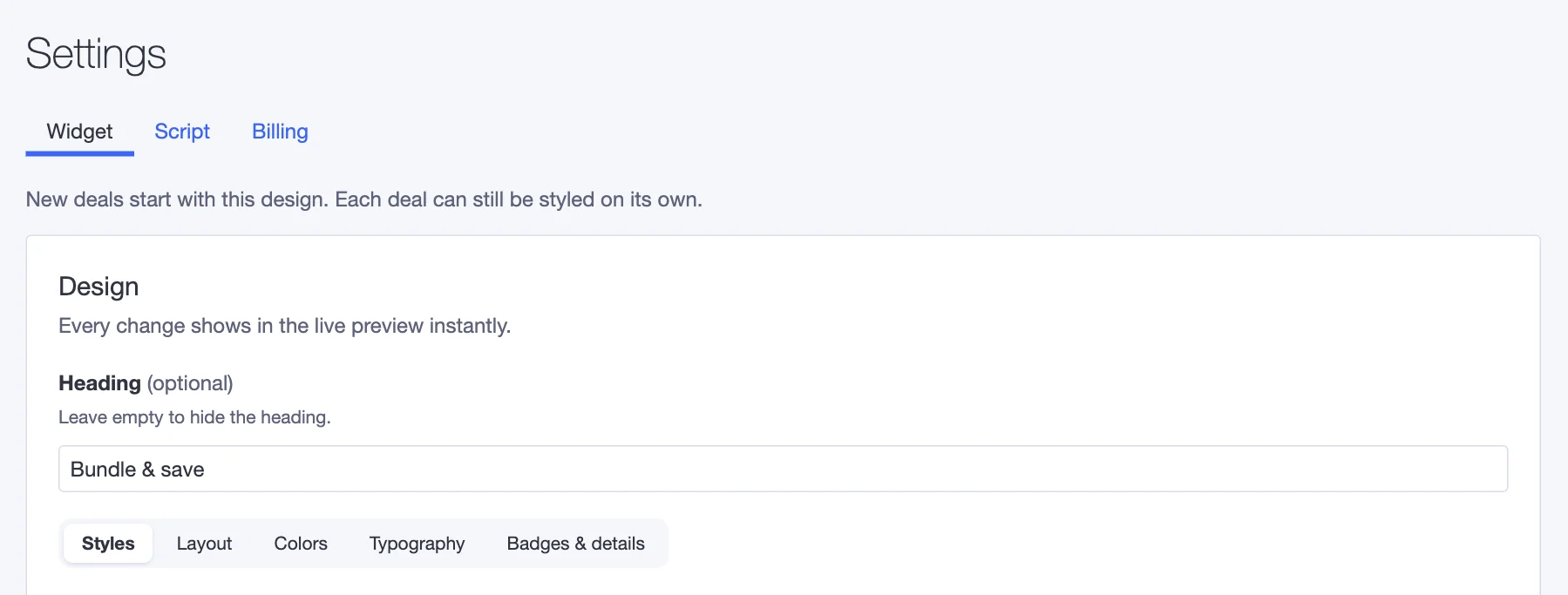
New deals start with this design, so set your brand colors and font here once. Each deal can still be styled on its own in its Design step. Changing the default doesn't change deals you've already created.
Storefront behavior
Further down Settings → Widget, these settings control how the widget works with your theme on every product page:
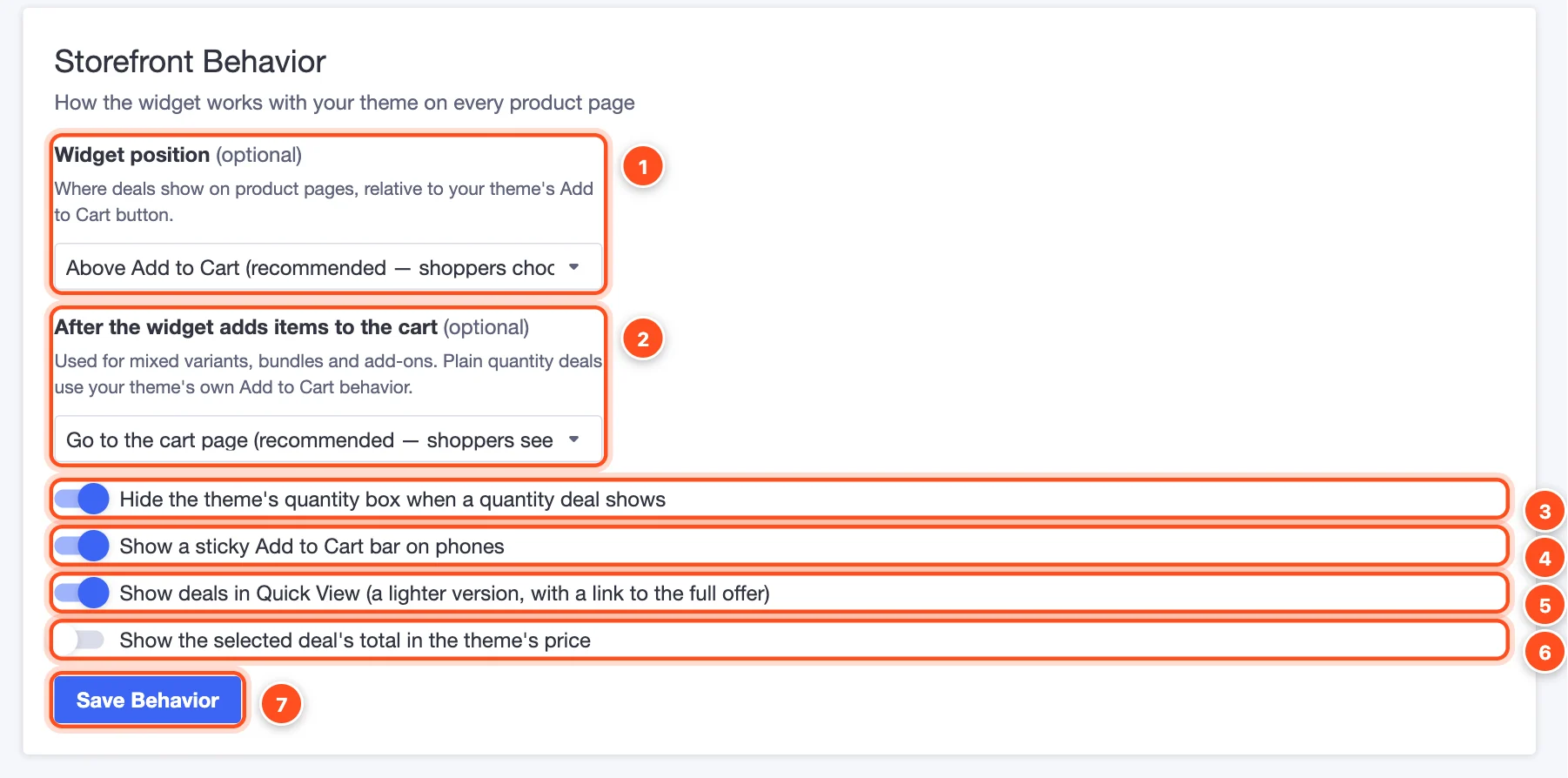
- Widget position — Above Add to Cart (recommended: shoppers choose a deal before they click) or Below Add to Cart. Bundles always show below.
- After the widget adds items to the cart — for plain quantity deals, your theme's own Add to Cart button does the adding and behaves as usual. For mixed sizes, bundles and add-ons, the widget adds the items itself and then:
- Goes to the cart page (recommended — shoppers see the discount applied),
- Goes straight to checkout, or
- Stays on the page and shows a confirmation.
- Hide the theme's quantity box when a quantity deal shows (on by default) — the widget sets the quantity, so a second quantity box would only confuse shoppers.
- Show a sticky Add to Cart bar on phones (on by default) — once the theme's button scrolls out of view, a slim bar with the chosen deal and an Add to Cart button stays at the bottom of the screen.
- Show deals in Quick View (on by default) — when your theme opens a product in a quick-view popup (for example from a category page), a lighter version of the deal shows there too, with a link to the full offer on the product page.
- Show the selected deal's total in the theme's price — the price at the top of the product page changes to the total of the chosen tier (e.g. "$59.50" for a 2-pack).
- Save Behavior — saves these settings. They reach your storefront within a few minutes.
Script
Settings → Script shows whether the app's storefront script is installed, and lets you fine-tune where the widget appears.
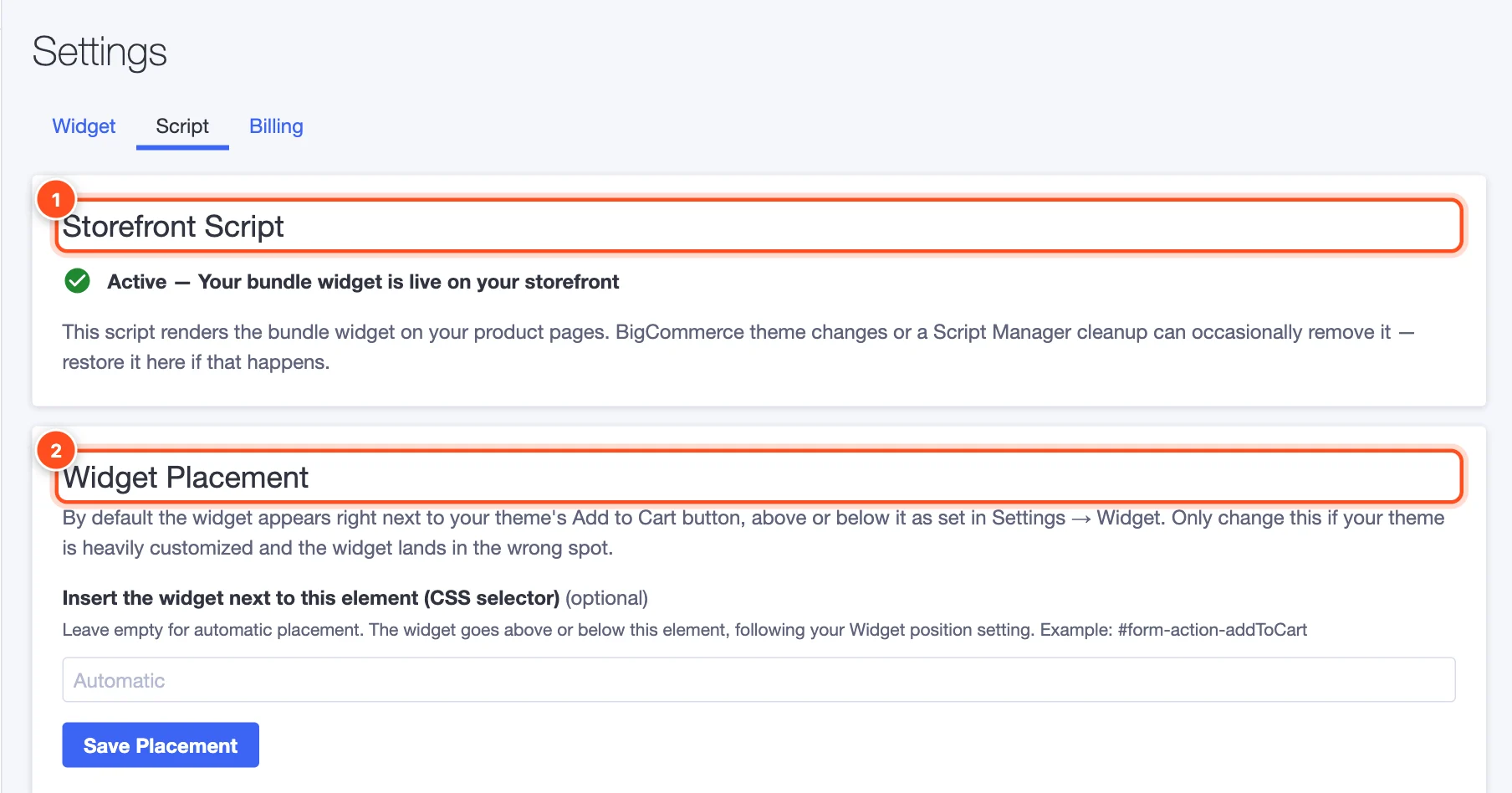
- Storefront Script — should say Active — Your bundle widget is live on your storefront. The app adds the script when you install it. Theme changes or a clean-up in BigCommerce's Script Manager can occasionally remove it; if that happens this panel says so, and one click restores it.
- Widget Placement — by default the widget finds your theme's Add to Cart button automatically. Only if your theme is heavily customized and the widget lands in the wrong spot, enter a CSS selector for the element it should sit next to (for example
#form-action-addToCart) and click Save Placement. Not sure what to enter? Email us with a link to a product page and we'll tell you.