Managing your deals
Find, publish, pause, duplicate and delete deals — and understand every status.
All your deals live on the Deals page.
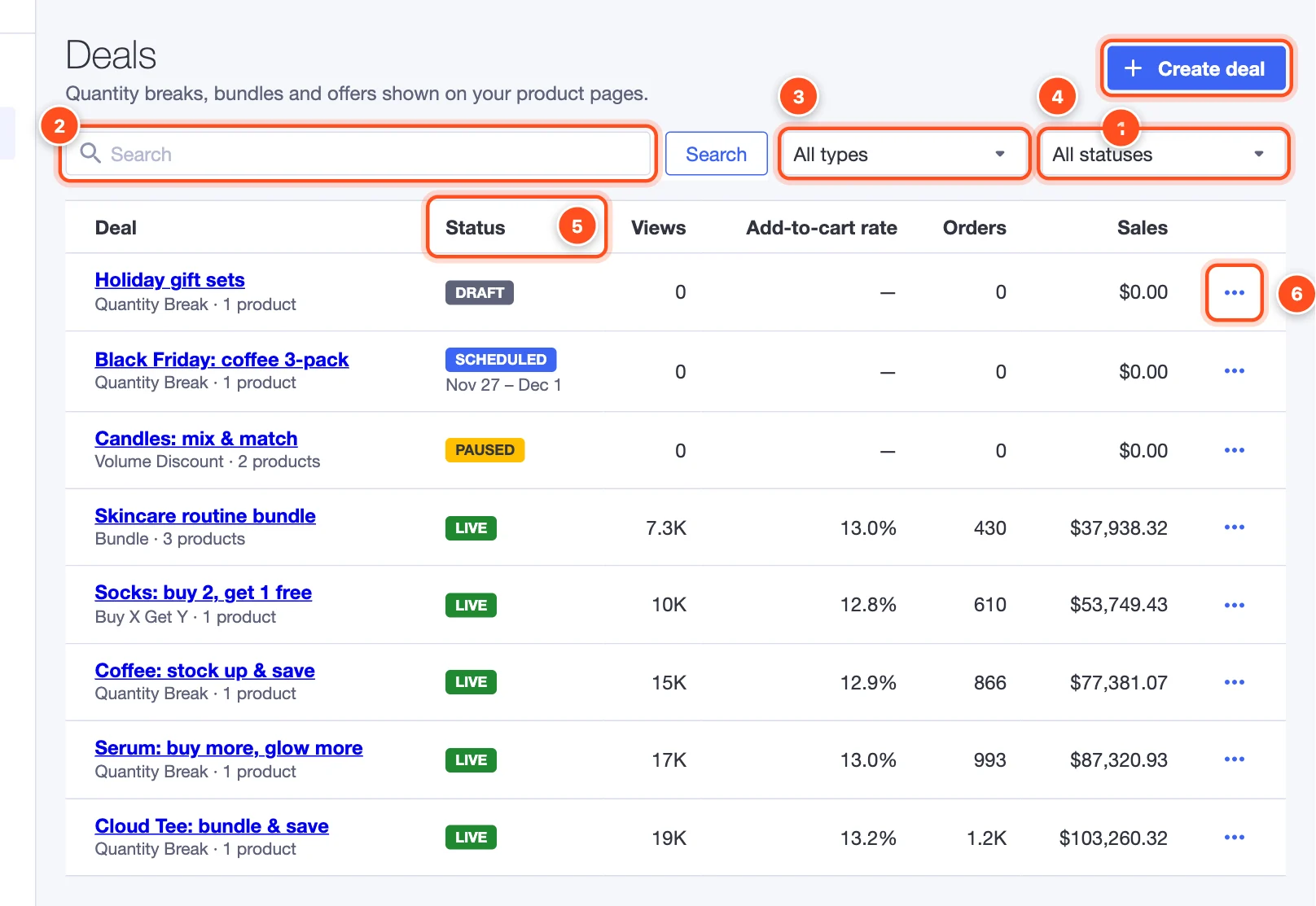
- Create deal — start a new deal.
- Search deals by name.
- Filter by type — quantity breaks, buy X get Y, bundles or volume discounts.
- Filter by status — live, scheduled, paused, drafts and so on.
- Status — where each deal stands (see below). Scheduled deals also show their dates.
- Actions — the ⋯ menu on each deal.
The table also shows each deal's views, add-to-cart rate, orders and sales. Click a deal's name to open it in the editor.
Deal statuses
| Status | What it means |
|---|---|
| Draft | Not published yet. Shoppers don't see it. |
| Live | Showing on your storefront, with prices set up in BigCommerce. |
| Scheduled | Published, but its start date is in the future. It goes live by itself. |
| Ended | Its end date has passed. It's no longer shown or charged. |
| Paused | You paused it. Its settings are kept; resume it any time. |
| Syncing | The app is setting up its prices in BigCommerce — usually a few seconds. |
| Needs attention | BigCommerce didn't accept part of it. Open the deal to see why. See Troubleshooting. |
The actions menu
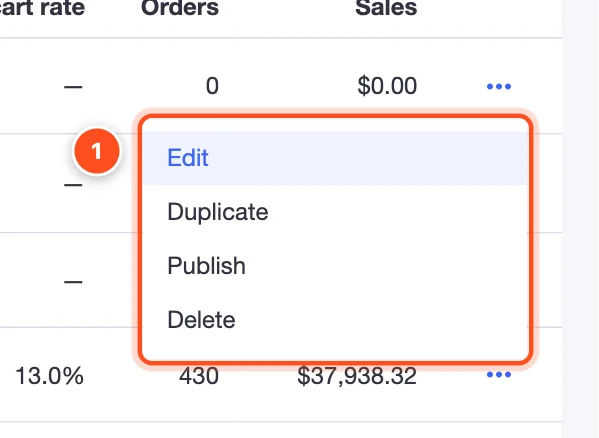
- The menu offers:
- Edit — open the deal in the editor.
- Duplicate — make a copy named "(Copy)", saved as a draft. A quick way to try a variation or reuse a setup on other products.
- Publish / Pause / Resume — put the deal live, take it off your storefront, or bring it back.
- Delete — remove the deal for good (it asks you to confirm first).
Important: Deleting a deal removes it from your storefront, removes its prices from BigCommerce, and deletes its stats. It can't be undone. If you might want it back, pause it instead — a paused deal keeps everything.
When deals overlap
You can run several deals on the same products. When deals of the same kind cover the same product:
- the deal with the higher priority (in Settings) shows, and is what BigCommerce charges;
- if they have the same priority, the older deal wins.
The editor warns you with an "Other live deals cover some of the same products" message, naming the overlapping deals. A bundle and a quantity break don't compete — the quantity break shows above Add to Cart and the bundle below.