Install and set up
Install the app, start your free trial and check the widget is on your storefront. About five minutes.
1. Install the app
- In your BigCommerce control panel, go to Apps → Marketplace and search for Bundles App & Upsells.
- Click Install and approve the permissions. The app needs them to:
- add its small script to your storefront (so the offer can appear on product pages),
- create bulk pricing rules and promotions (so BigCommerce charges the deal price),
- read your products, categories, brands and customer groups (so you can pick them),
- read orders (so Analytics can show what each deal sold).
- The app opens inside your control panel. There's no separate account or password to create.
You'll find it later under Apps → My Apps → Bundles App & Upsells in the left menu of your control panel.
Important: Installing in Safari? If nothing happens after you click Install, Safari is blocking the cookies BigCommerce apps need. Install from Chrome, Edge or Firefox instead — after that you can use the app in any browser.
2. Meet the Overview page
The app opens on Overview. On a brand-new store it shows a short setup checklist:
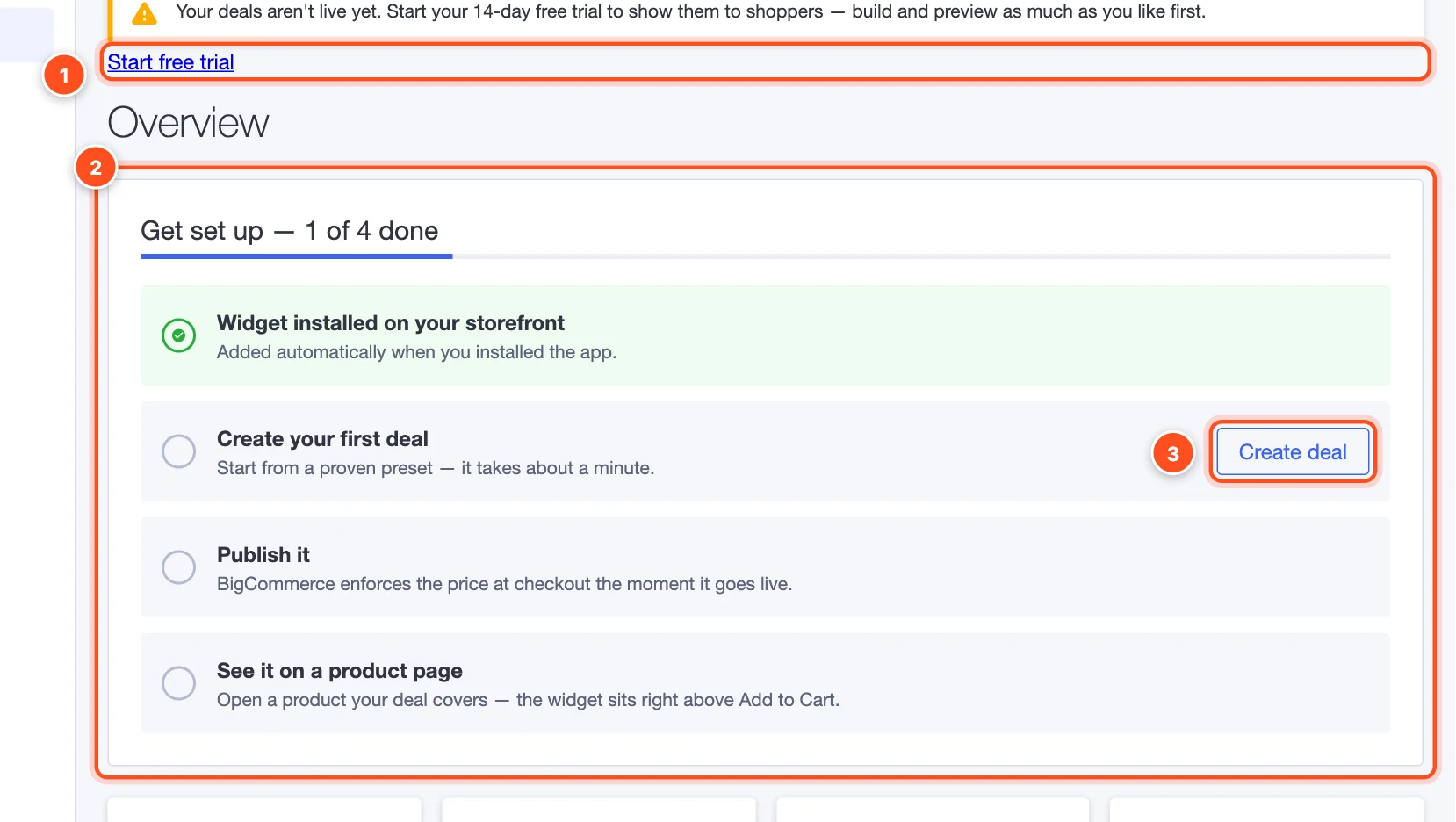
- Start free trial — your deals stay hidden from shoppers until you start a plan. You can build and preview as much as you like first.
- Get set up — four steps that tick themselves off as you go: the widget is installed (done for you automatically), create a deal, publish it, and see it on a product page.
- Create deal — jumps straight to creating your first deal.
3. Start your free trial
Every plan includes every feature and starts with a 14-day free trial (one trial per store). You can cancel anytime before it ends and you won't be charged.
- Go to Settings → Billing (or click Start free trial on the banner).
- Choose Monthly or Yearly — yearly gives you two months free.
- Click Start free trial on the plan you want. A secure checkout opens in a new tab.
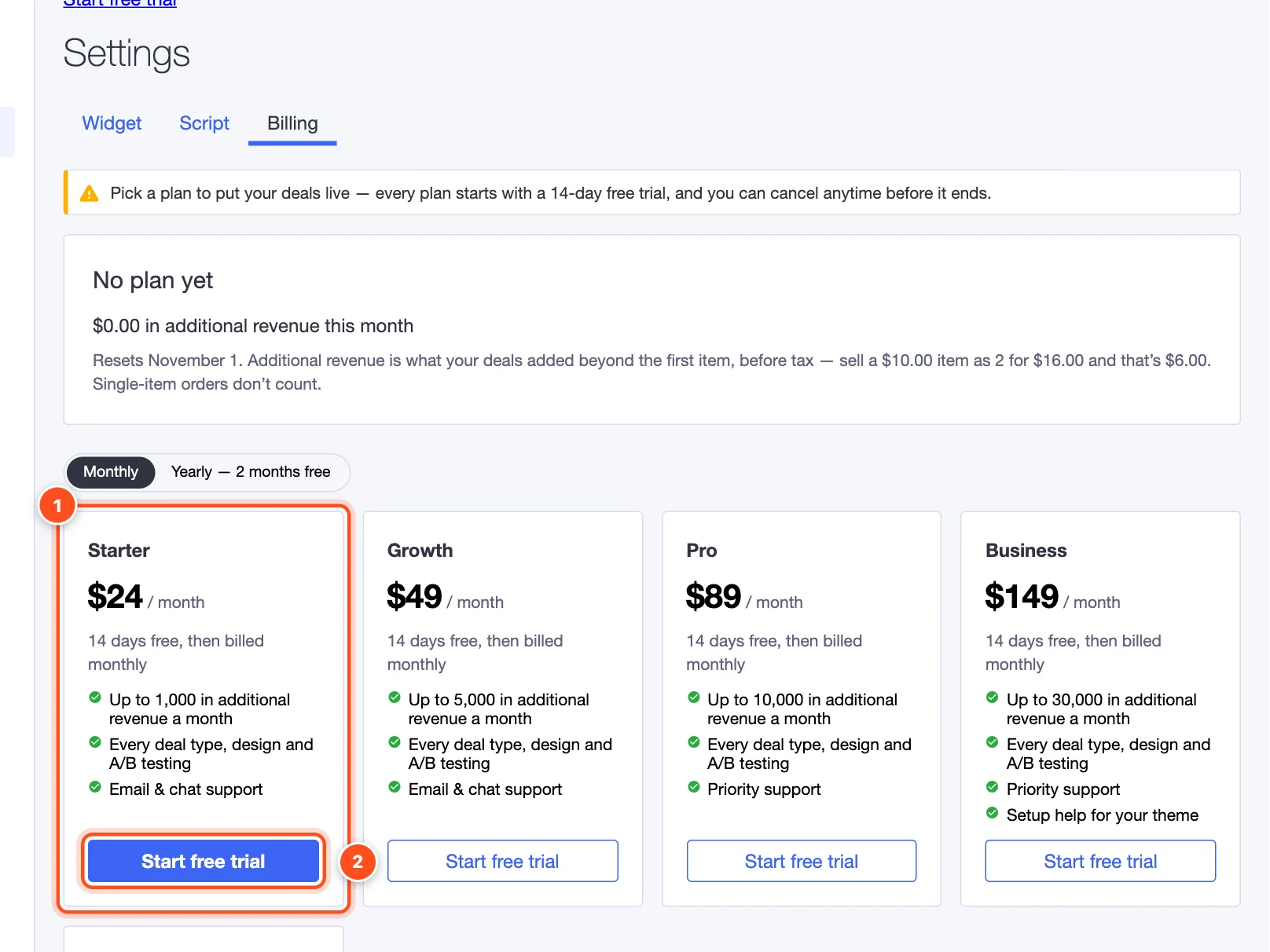
- Each plan card shows the price and how much additional revenue it includes each month.
- Start free trial opens the checkout. When you finish, come back to the app — your plan shows up within a minute (refresh the page if it doesn't).
Note: Not sure which plan? Start with Starter. Plans differ only in how much extra revenue your deals bring in each month — see Plans and billing. You can switch any time.
4. Check the widget is installed
The app adds its storefront script automatically when you install. To double-check, open Settings → Script: it should say Active — Your bundle widget is live on your storefront. If it says the script is missing, click the button there to restore it. More in Store settings.