Step 3: Extras
Free gifts that unlock as shoppers pick bigger packs, and one-click add-ons like gift wrap and accessories.
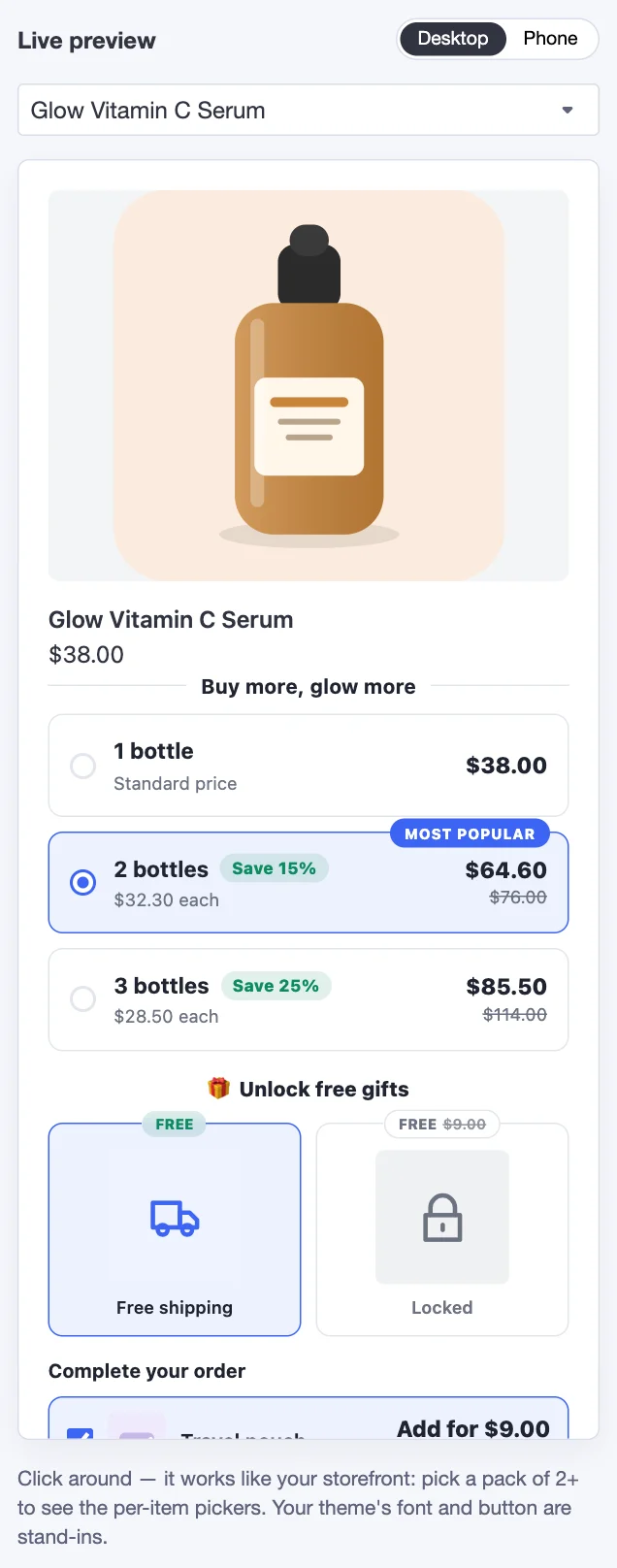
Extras are optional — a deal works fine without them — but they're one of the best ways to push shoppers up to a bigger pack. Here's how they look on the product page:
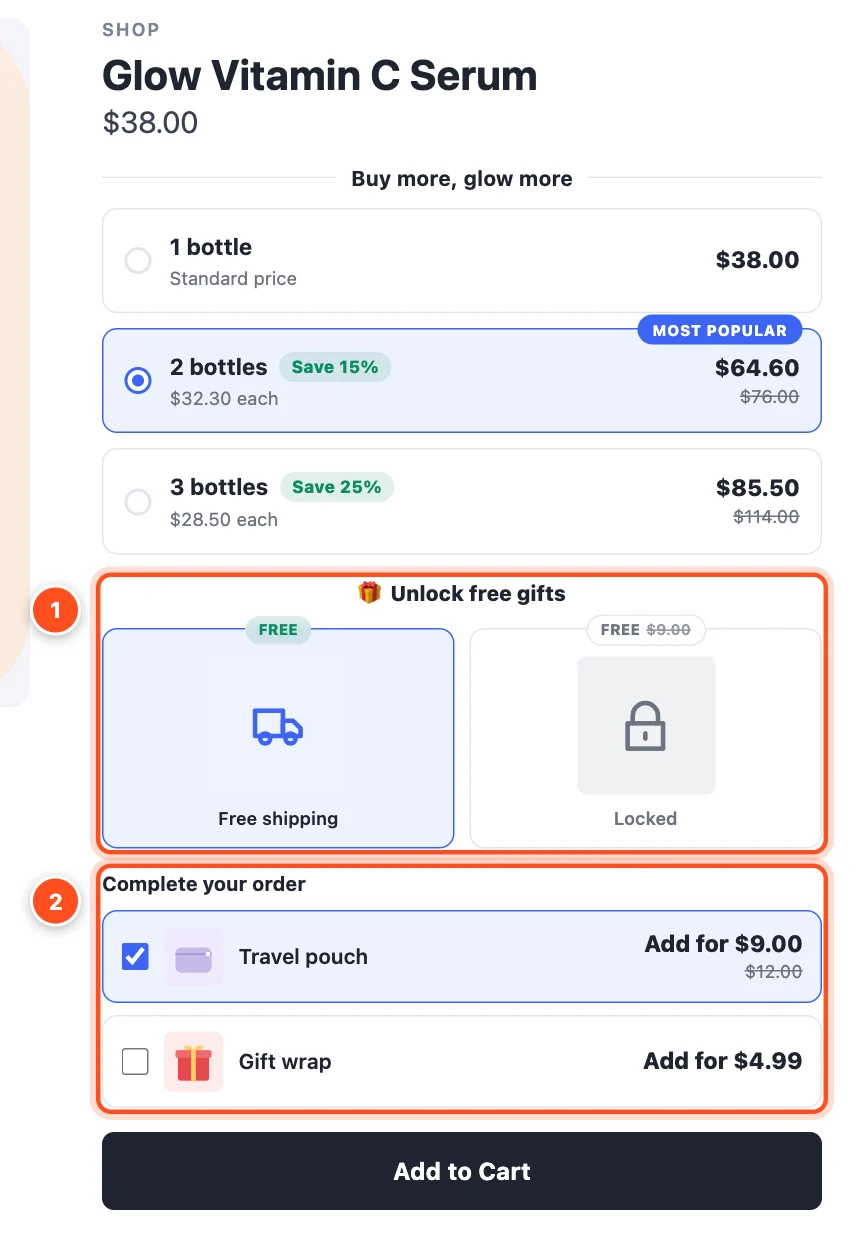
- Free gifts row — gifts that unlock as the shopper picks bigger tiers. Locked gifts show what they'd get by moving up.
- Add-ons — extra products shoppers tick to add with one click, at a special price.
Free gifts
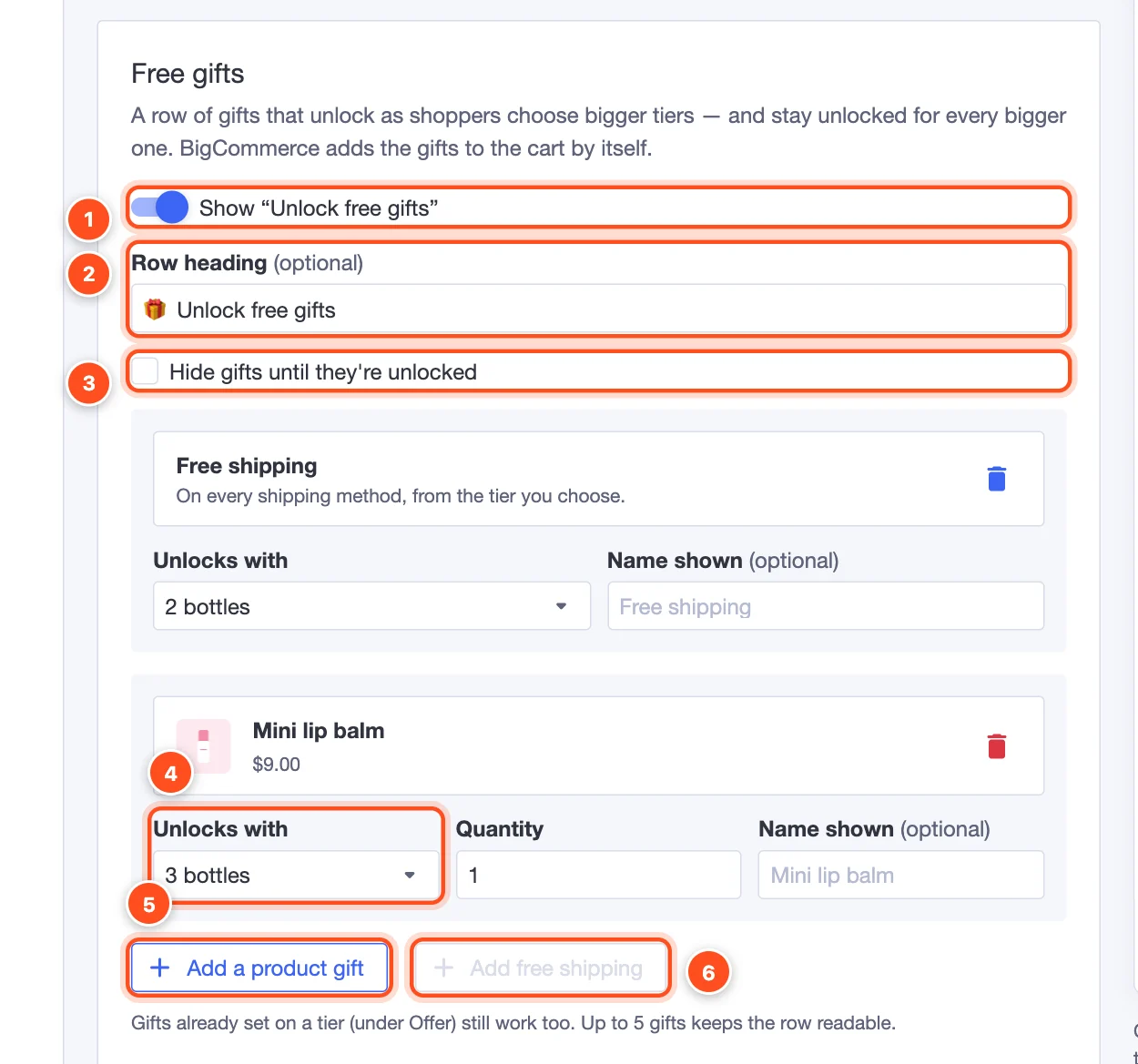
- Show "Unlock free gifts" — turns the gifts row on.
- Row heading — the title above the gifts, "🎁 Unlock free gifts" by default.
- Hide gifts until they're unlocked — by default, locked gifts are shown (greyed out) to tempt shoppers; tick this to show only the ones they've earned.
- Unlocks with — the tier that unlocks each gift. A gift stays unlocked for every bigger tier too. You can also rename a gift with Name shown.
- Add a product gift — choose a product to give away (up to 5 gifts). BigCommerce adds it to the cart by itself.
- Add free shipping — free shipping on every shipping method, from the tier you choose.
Tip: A classic setup: free shipping from the 2-pack, and a small free product from the 3-pack. Shoppers who were going to buy two often go for three to get the gift.
Gifts set on a single tier (under Offer → Customize) still work too — use those for a gift that belongs to one tier only.
Add-ons
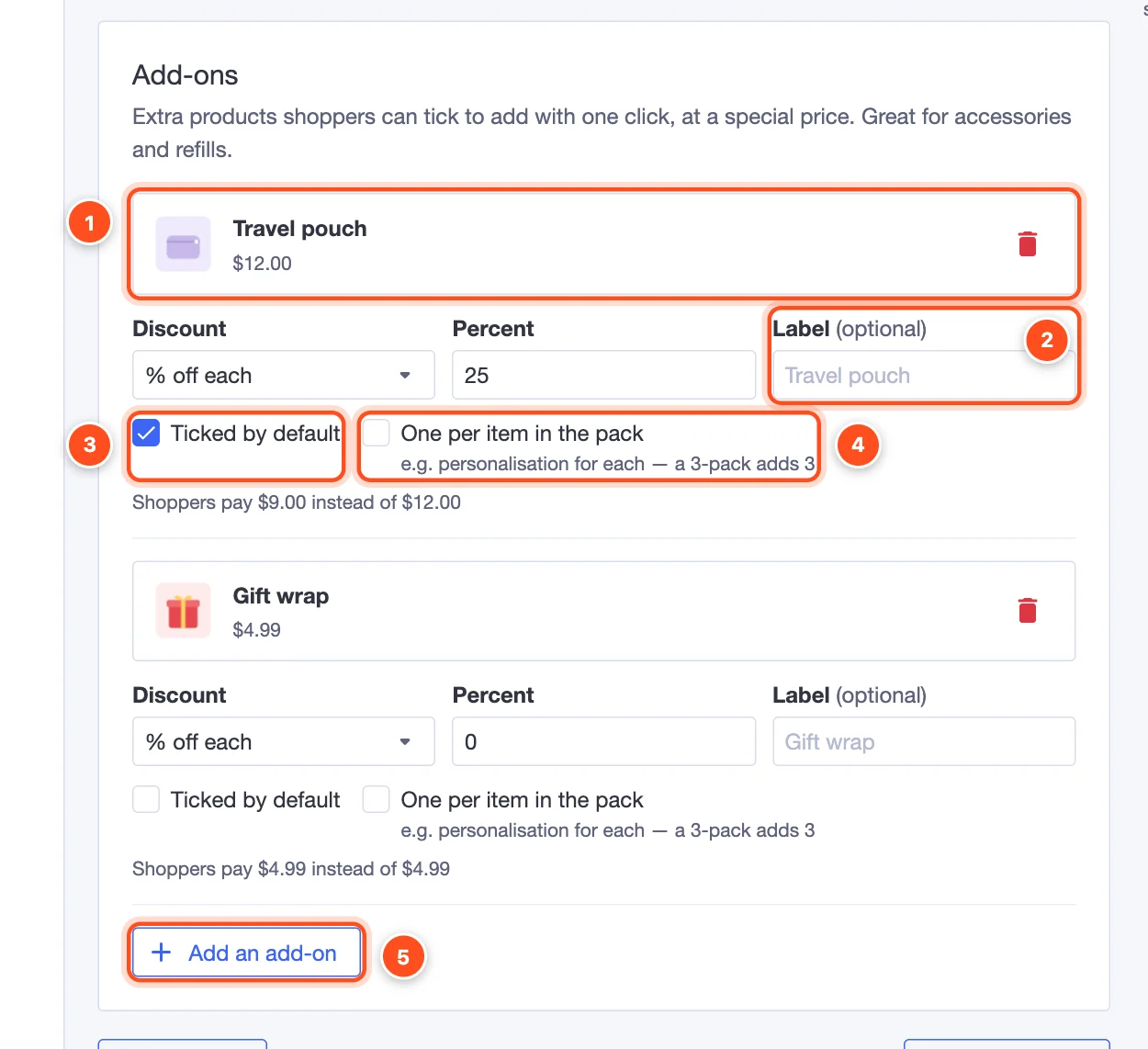
- The add-on product. Add accessories, refills, gift wrap — anything that goes with the main product.
- Discount and label — offer it at a special price (% off, amount off, or a fixed price), and optionally change the name shown to shoppers.
- Ticked by default — the add-on starts ticked, so shoppers untick it if they don't want it. Use with care: shoppers should always notice what they're buying.
- One per item in the pack — for things like personalisation or gift boxes for each item: a 3-pack adds 3.
- Add an add-on — up to 5 per deal keeps the choice easy.
See it in the preview
The live preview shows the gifts row and add-ons as you set them up. Pick different tiers in the preview to watch gifts unlock.