Quantity breaks
"Buy more, save more" — pack sizes with a better price per item, a size and color picker for each item, and bundle options.
A quantity break shows a few pack sizes. Shoppers pick one, and your theme's Add to Cart button adds that many.
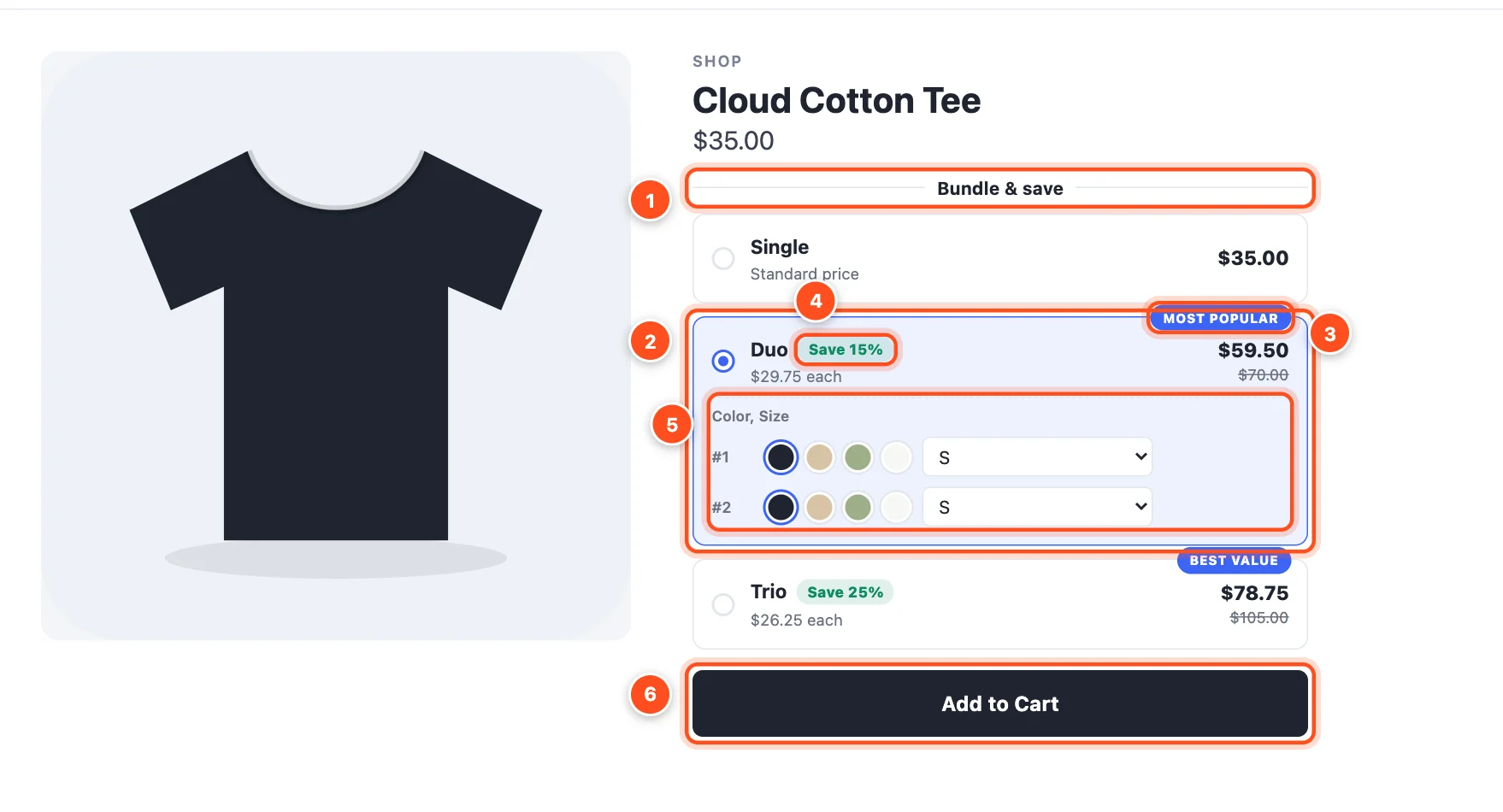
- Heading — "Bundle & save" by default. Change it (or hide it) in Design.
- Tiers — each pack size is a tier. The selected one is highlighted.
- Badge — "Most popular", "Best value" or your own words, to steer shoppers to the pack you want them to pick.
- Savings label — "Save 15%" is worked out for you from the discount.
- A picker for each item — shoppers choose the size and color of every item in the pack (item #1 Medium in black, item #2 Large in sand…).
- Your theme's own Add to Cart button — shoppers use it as usual. Your cart drawer, product options and checkout keep working exactly as they do today.
Set one up
- Deals → Create deal → Quantity breaks, and choose a starting point:
- Buy more, save more — 1 / 2 (−10%) / 3 (−20%). The safe default.
- Stock up — 1 / 2 (−15%) / 3 (−25%) / 5 (−35%). For consumables and refills.
- Start from scratch — build your own.
- In Offer, adjust the tiers. For each one choose the quantity and the discount. The Offer guide explains every option.
- In Products, choose where the deal shows.
- Pick a style in Design and click Publish.
Ways to price a tier
| Discount | Example | Shoppers pay for 2 × $35 |
|---|---|---|
| % off each | 15% | $59.50 |
| Amount off each | $5 off each | $60.00 |
| Price per item | $30 each | $60.00 |
| Total price | $55 for the pack | $55.00 |
Under every tier the editor shows exactly what shoppers will pay, so you never have to do the maths.
Optional extras for quantity breaks
A size and color picker for each item
On by default. When a shopper picks a pack of 2 or more, each item gets its own row to choose its options. It works with variant options (size, color…) and with choice modifiers (dropdowns, buttons, swatches). Turn it off under Offer → Shopper choices if every item in the pack should be the variant chosen on the product page.
Let shoppers pick different products
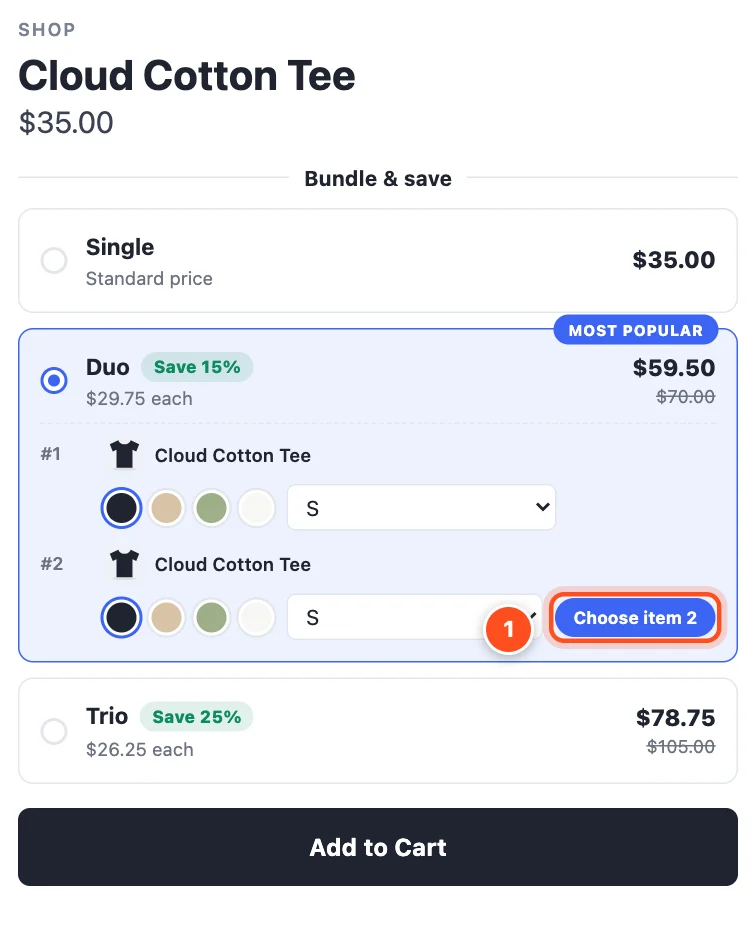
Under Offer → Shopper choices, turn on Let shoppers pick different products and choose the products to offer. Items #2 onwards get a Choose button, so a shopper can buy one tee and swap the second for a different design — the tier discount still applies, because quantities count across all of them together.
Bundle options
Click Add a bundle option under the tiers to add a special tier that sells a set instead of more of the same: "this tee + matching socks, 20% off". The product the shopper is viewing is always part of the set.
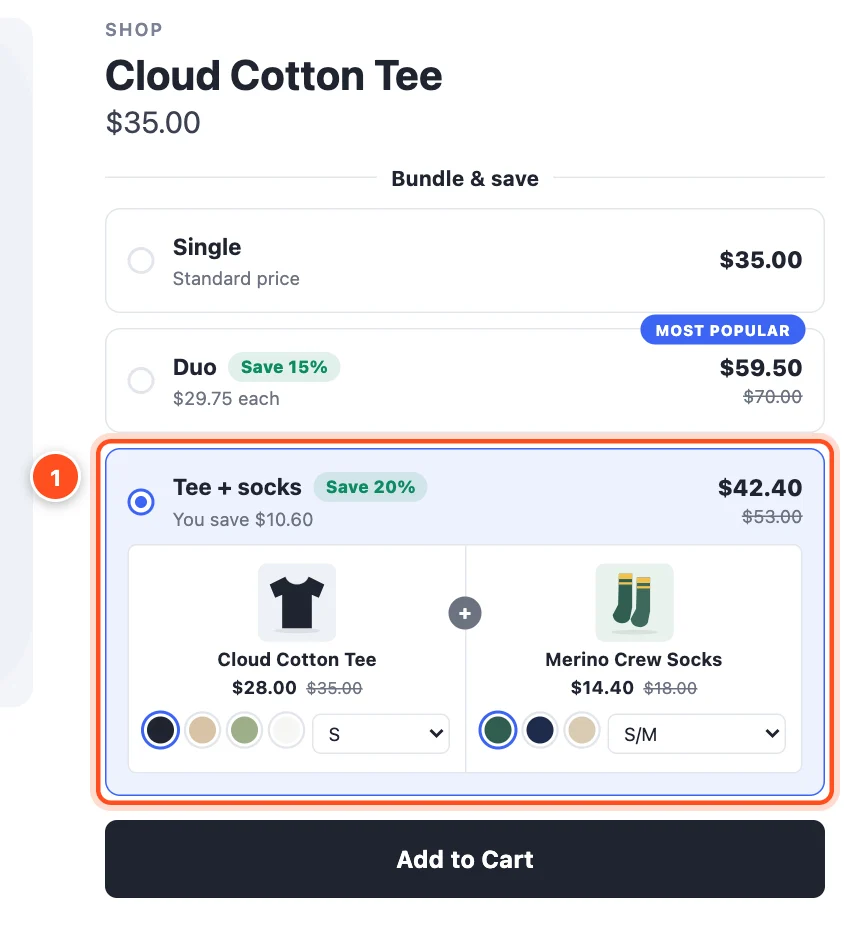
- The bundle option sits alongside your normal tiers, with its own price and savings. Shoppers pick options for each product in the set.
See Bundle options for setup.
Mix & match
Under Offer → More options, Mix & match counts items across all of the deal's products together — so "3 items" can be any three of the products the deal covers, not three of the same one.
Good to know
- Quantity breaks are enforced as bulk pricing rules on each product. If a product already has its own bulk pricing rules in BigCommerce, the deal can't add its own — remove the old rules or exclude that product. See Troubleshooting.
- Limiting a quantity break to certain customer groups switches it to a BigCommerce promotion, which counts quantities across all of the deal's products together.
- You can have up to 8 tiers in one deal.