Step 1: Offer
Set up the tiers shoppers choose from and the discount on each — plus badges, selling points, scratch-offs and shopper choices.
The Offer step is the heart of a deal: the options shoppers choose between (we call them tiers) and the discount on each. This page uses a quantity break as the example; the steps for Buy X, get Y, Bundles and Volume discounts work the same way, with the differences explained on their own pages.
Tiers
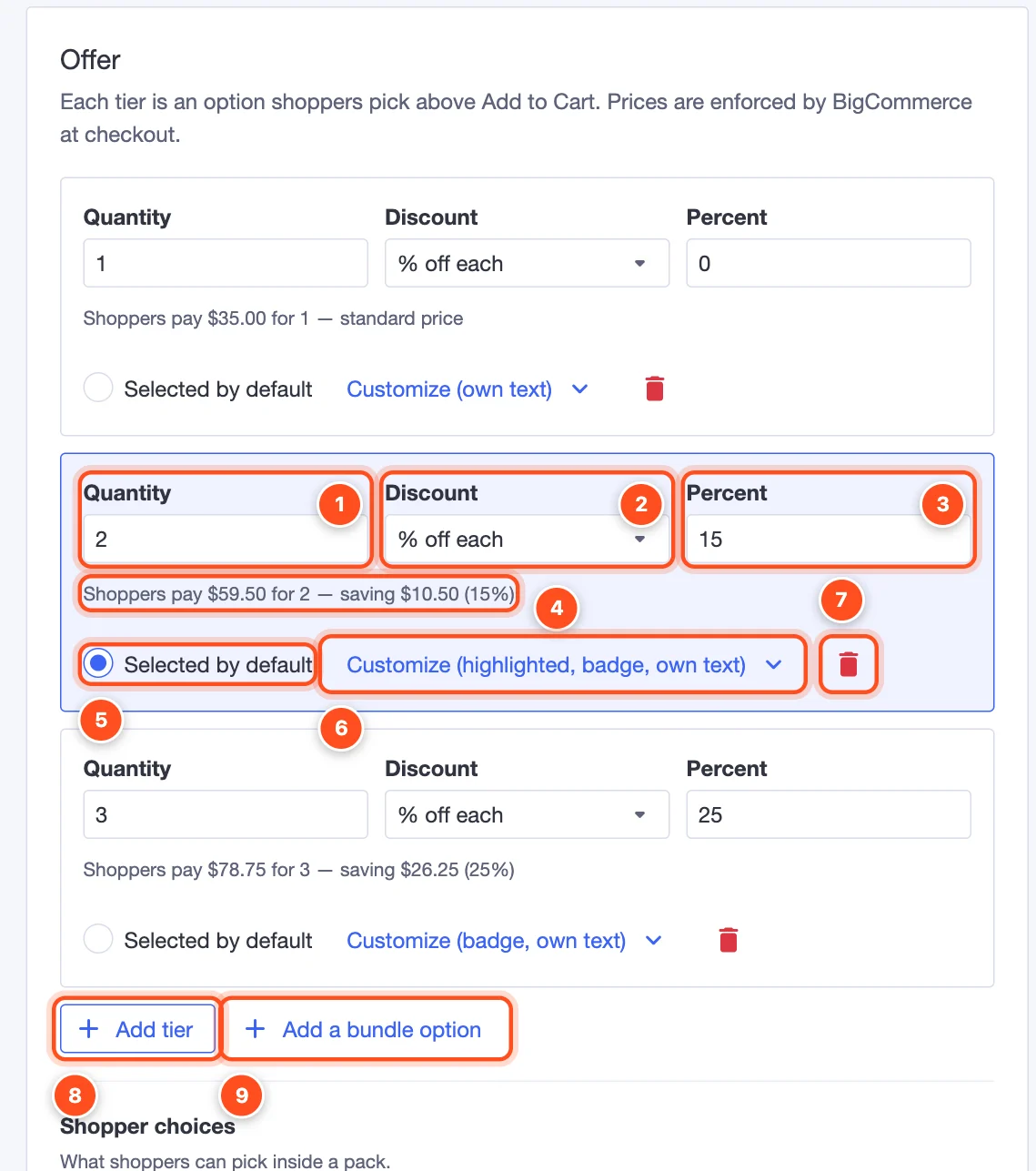
Quantity — how many items this tier is for.
Discount — how the price is worked out:
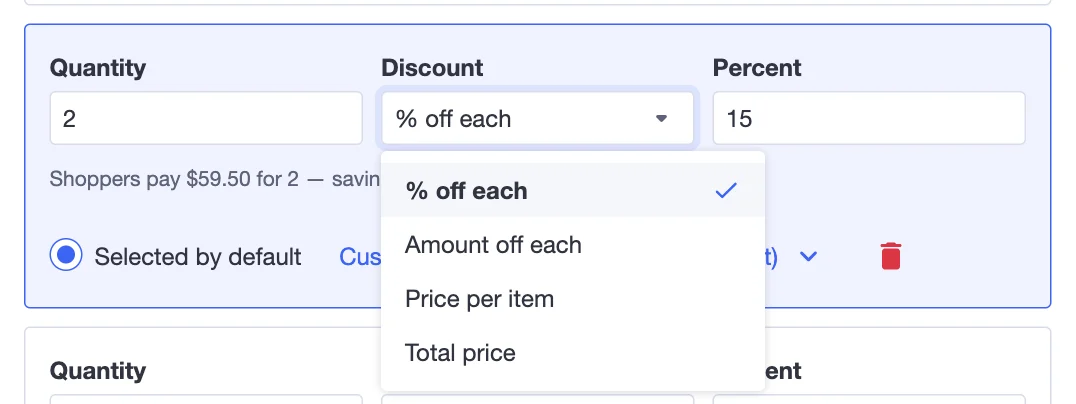
- % off each — e.g. 15% off every item.
- Amount off each — e.g. $5 off every item.
- Price per item — e.g. $30 each.
- Total price — one price for the whole tier, e.g. $55 for 2.
Percent (or Amount) — the value of the discount. Use 0 for a standard-price tier like "1 item".
What shoppers pay — the editor works out the price and the saving for your product, so you can sanity-check every tier at a glance.
Selected by default — the tier that's already picked when the page loads. Pre-selecting your best value tier is one of the easiest ways to raise order value.
Customize — extra options for this tier (badge, title, selling points, image, free gifts, highlight, scratch-off). When something is set, the button lists it, e.g. Customize (highlighted, badge). See Customize a tier.
Delete the tier. A quantity break needs at least two tiers.
Add tier — adds the next pack size. You can have up to 8 tiers.
Add a bundle option — adds a tier that sells a set of products instead of more of the same. See Bundle options.
Tip: Three tiers is the sweet spot: a single item, a "most popular" middle tier, and a "best value" big pack. Shoppers compare and most pick the middle.
Customize a tier
Click Customize under a tier to open its extra options:
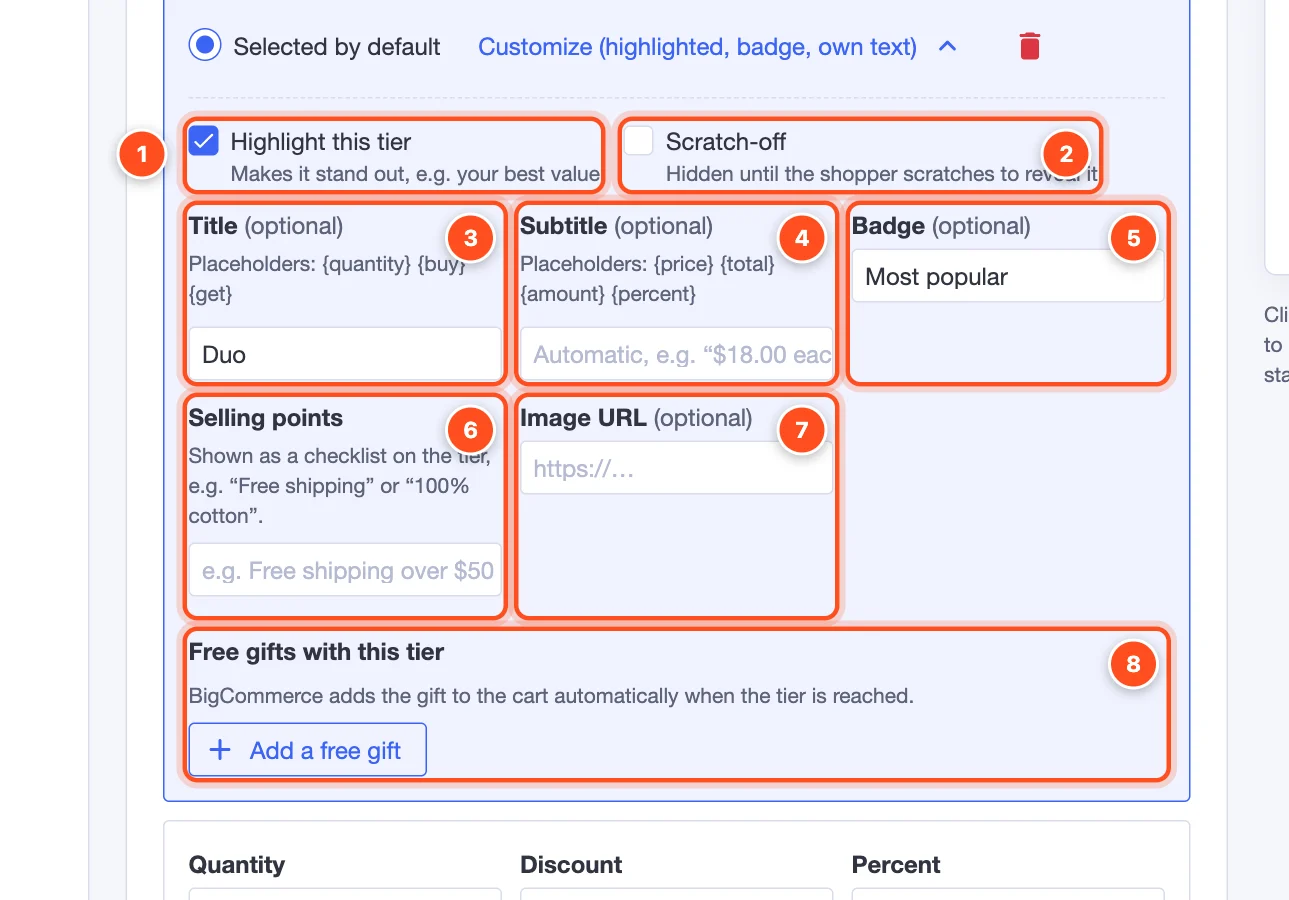
- Highlight this tier — makes it stand out with your accent color. Use it on the tier you most want shoppers to pick.
- Scratch-off — hides this tier behind a card shoppers scratch (or tap) to reveal: "Scratch to reveal a secret offer". A fun way to make your best deal feel special. A scratch-off tier can't be the one selected by default.
- Title — replaces the automatic title ("2 items"). Words in braces are filled in for you:
{quantity},{buy},{get}. For example "Duo" or "Pack of {quantity}". - Subtitle — replaces the automatic line under the title ("$29.75 each"). You can use
{price},{total},{amount}and{percent}, e.g. "Only {price} each!". - Badge — a small label on the tier's corner, e.g. "Most popular", "Best value", "Bestseller". Its look is set in Design.
- Selling points — up to four short lines shown as a ✓ checklist on the tier, e.g. "Free shipping" or "100% cotton".
- Image URL — a picture for this tier (for example a photo of the 3-pack). Leave it empty to use the product photo.
- Free gifts with this tier — products BigCommerce adds to the cart automatically when the shopper picks this tier (up to 3). For gifts that unlock as shoppers move up the tiers, use the Free gifts row instead.
Here's how those options look to shoppers:
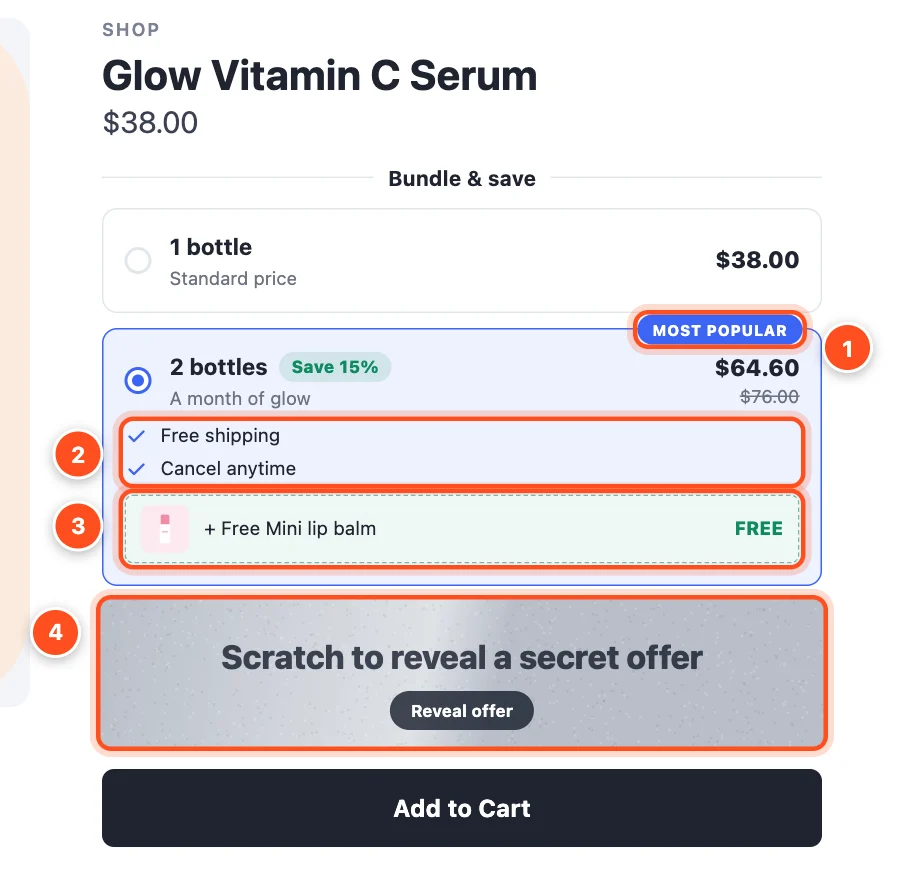
- Badge · 2. Selling points · 3. Free gift with this tier · 4. A scratch-off tier, still hidden.
Shopper choices
Below the tiers, Shopper choices controls what shoppers can pick inside a pack. Click More options to see three less-used settings.
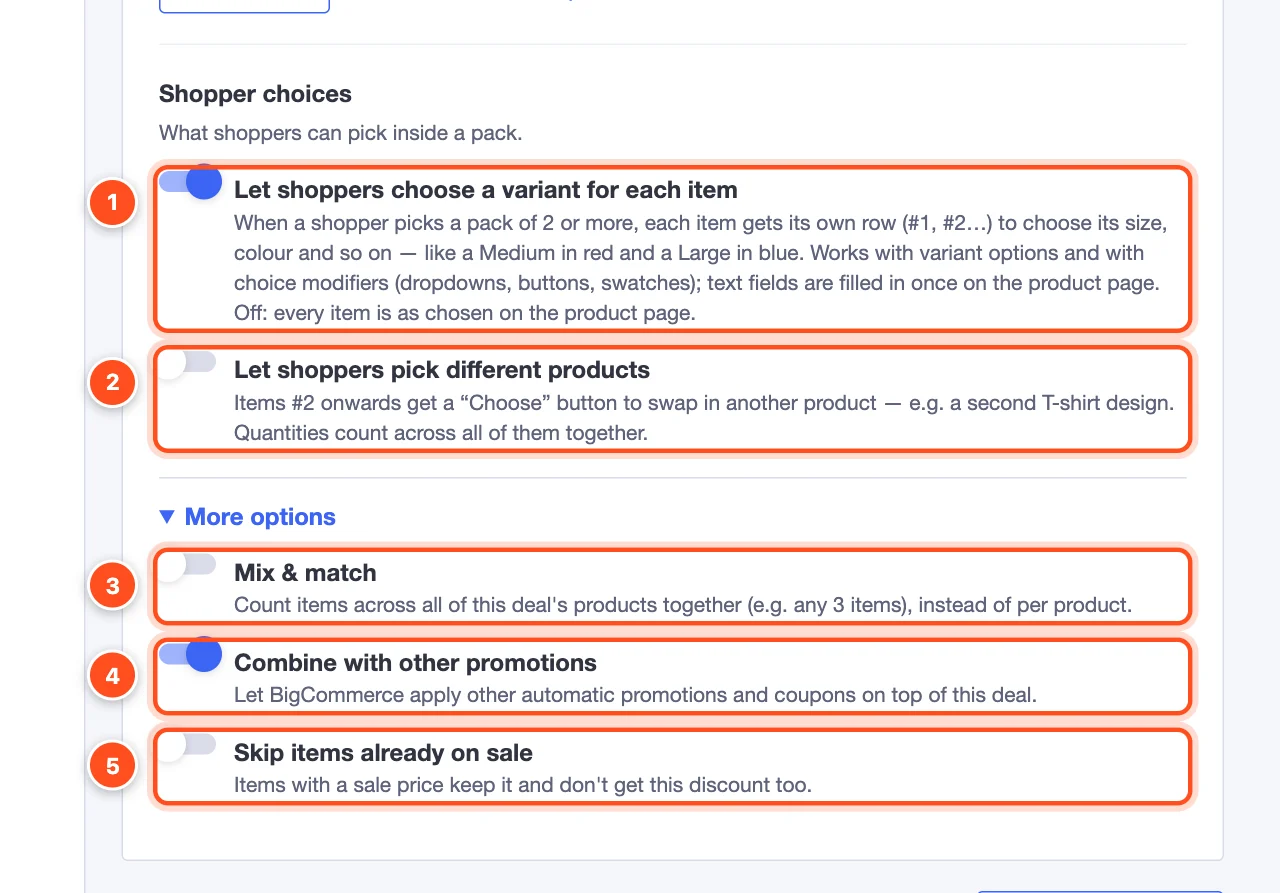
- Let shoppers choose a variant for each item (on by default) — in a pack of 2 or more, every item gets its own row (#1, #2…) to choose its size, color and so on. Works with variant options and choice modifiers. Turn it off if every item should be the variant chosen on the product page. If your products have no options, there's nothing to pick and the rows don't appear.
- Let shoppers pick different products — items #2 onwards get a Choose button to swap in another product you pick here (up to 24), e.g. a second T-shirt design. Quantities count across all of them together.
- Mix & match — count items across all of this deal's products together (e.g. any 3 items) instead of per product.
- Combine with other promotions (on by default) — let BigCommerce apply your other automatic promotions and coupon codes on top of this deal. Turn it off if you don't want discounts to stack.
- Skip items already on sale — items with a sale price keep it and don't get this deal's discount too.
Bundle options
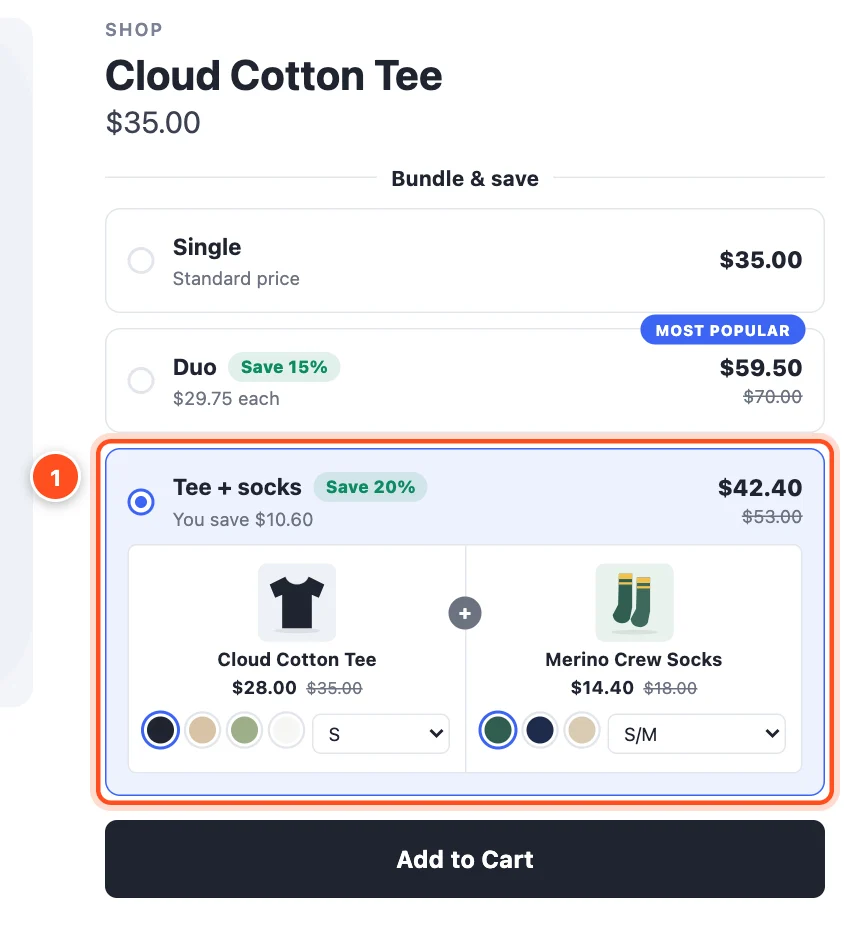
A bundle option is a special tier that sells a set — "this tee + matching socks" — next to your normal pack sizes. Click Add a bundle option under the tiers.
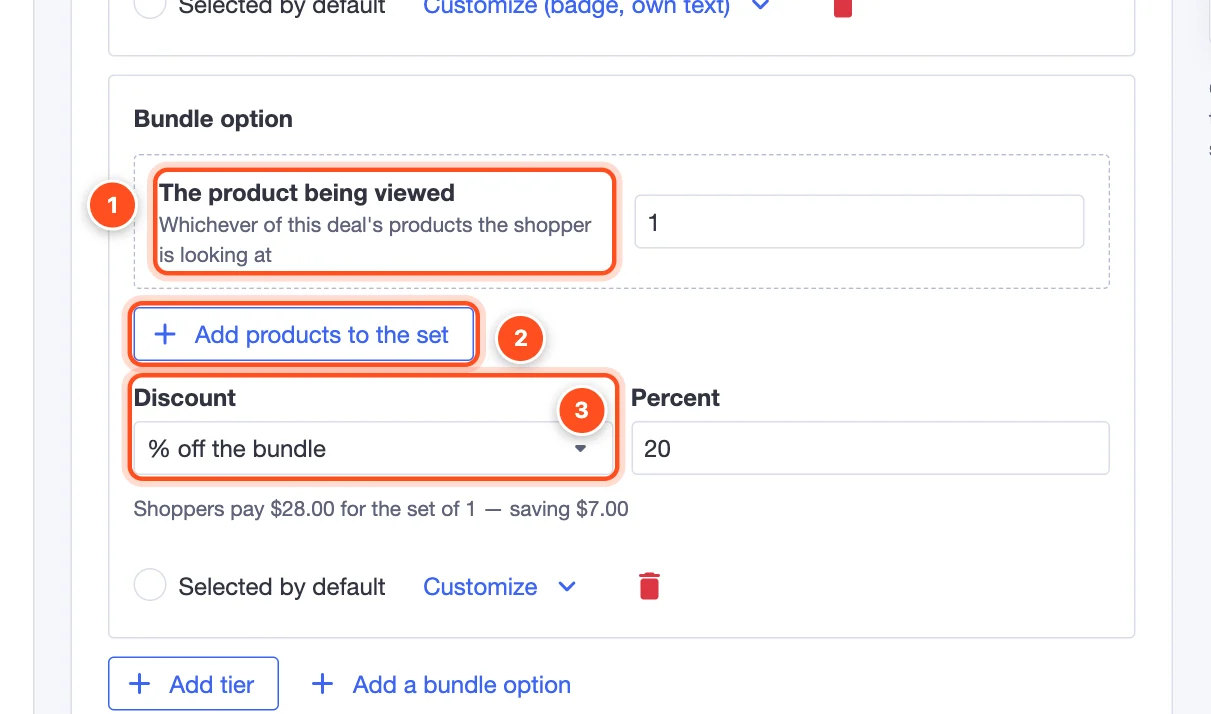
- The product being viewed is always in the set — whichever of the deal's products the shopper is looking at. Set how many.
- Add products to the set — add up to 3 more products, each with its own quantity.
- Discount — % off the set, an amount off, or a total price for the set.
Shoppers see the set as its own tier, with a picker for each product: